User Guide – SPIKE
Usage Instructions
Since the vision module emulates a color sensor, it is read-only. This means that you can only use the built-in color sensor blocks in SPIKE to read values from the vision module. Mode switching must be done manually on the vision module itself.
The output values of the vision module in different modes correspond directly to the values of the SPIKE color sensor. For detailed mapping, please refer to the SPIKE Compatibility Mode section.
After completing the above steps, connect the vision module to the SPIKE Prime hub. The hub will detect the module as a color sensor, as shown in the figure below:
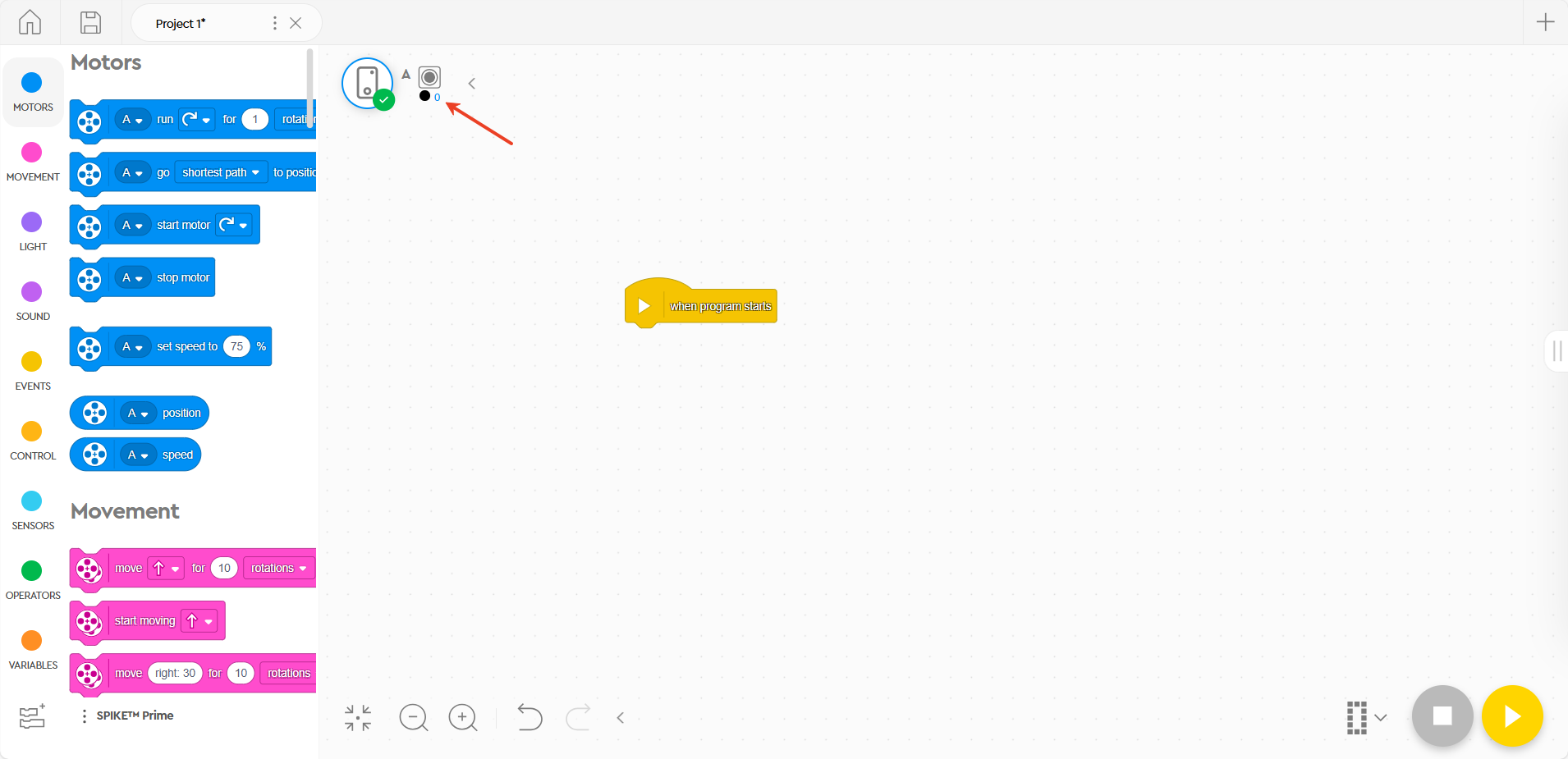
AI Vision
Color Recognition
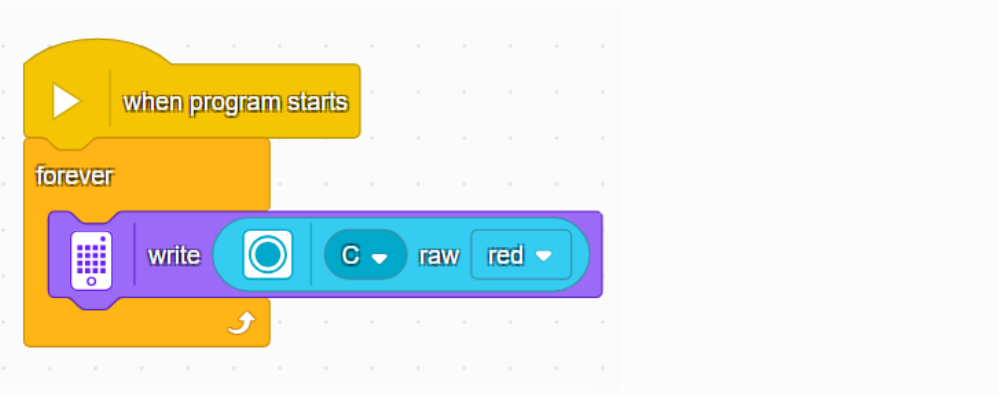
Switch the vision module to Color Recognition Mode.
Read the R value of the detected color from the vision module and display it on the SPIKE Prime hub.
Color Block Tracking
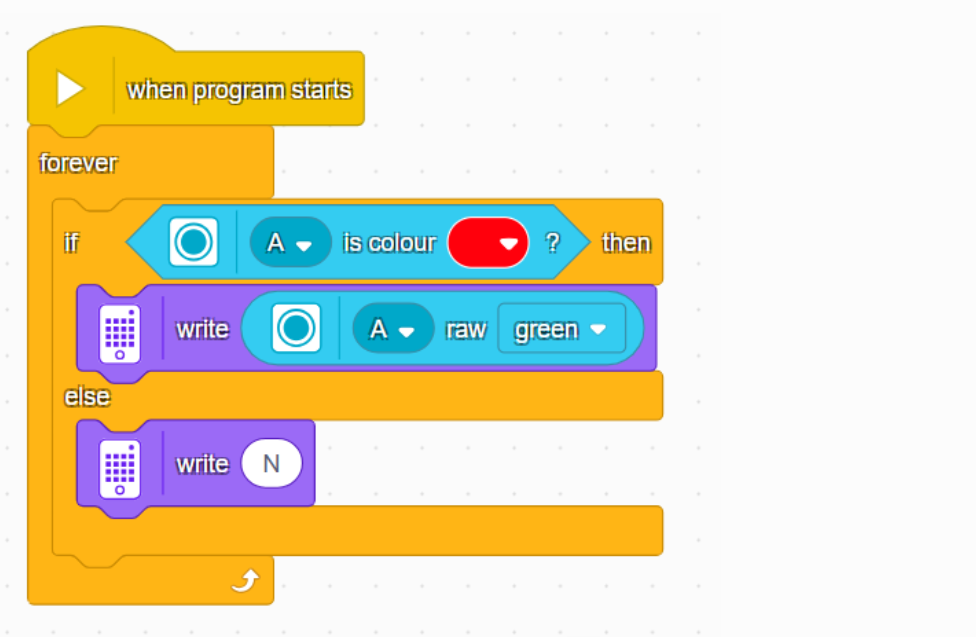
Switch the vision module to Color Block Tracking Mode.
If a color block is detected, the x-coordinate of the block will be displayed on the SPIKE Prime hub; otherwise, N will be shown.
Tag Recognition
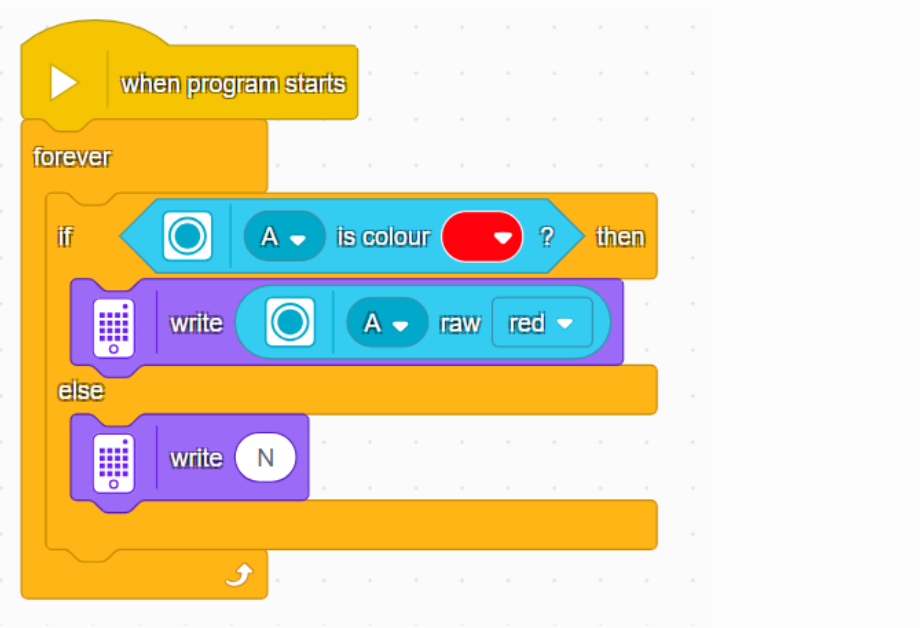
Switch the vision module to Tag Recognition Mode.
If a tag is detected, the Tag ID will be displayed on the SPIKE Prime hub; otherwise, N will be shown.
Line Recognition
Switch the vision module to Line Recognition Mode.
If a line is detected, the X-coordinate of the line will be displayed on the SPIKE Prime hub; otherwise, N will be shown.
20-Class Object Recognition
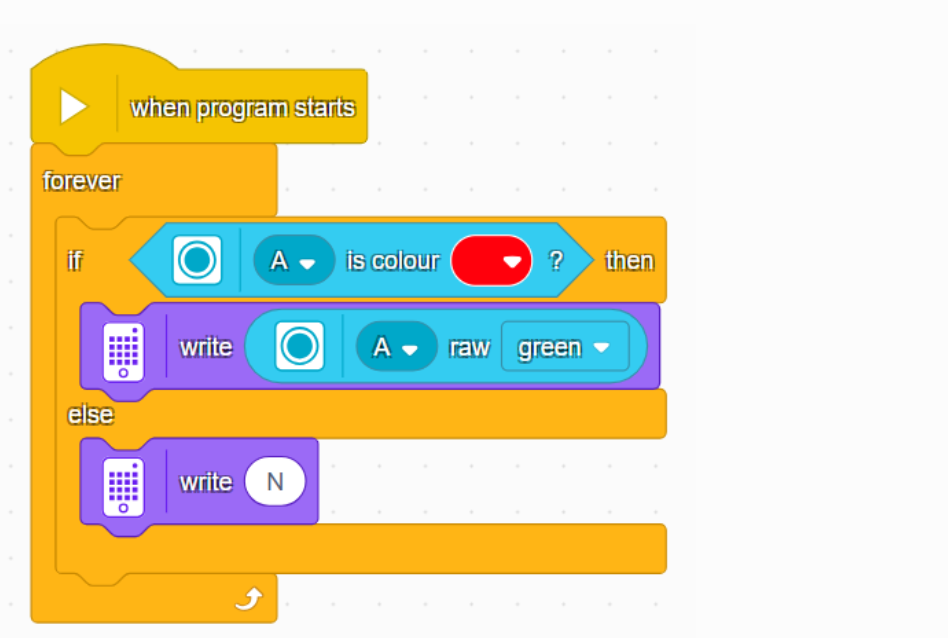
Switch the vision module to 20-Class Object Recognition Mode.
If an object is detected, its ID will be displayed on the SPIKE Prime hub; otherwise, N will be shown.
QR Code Recognition
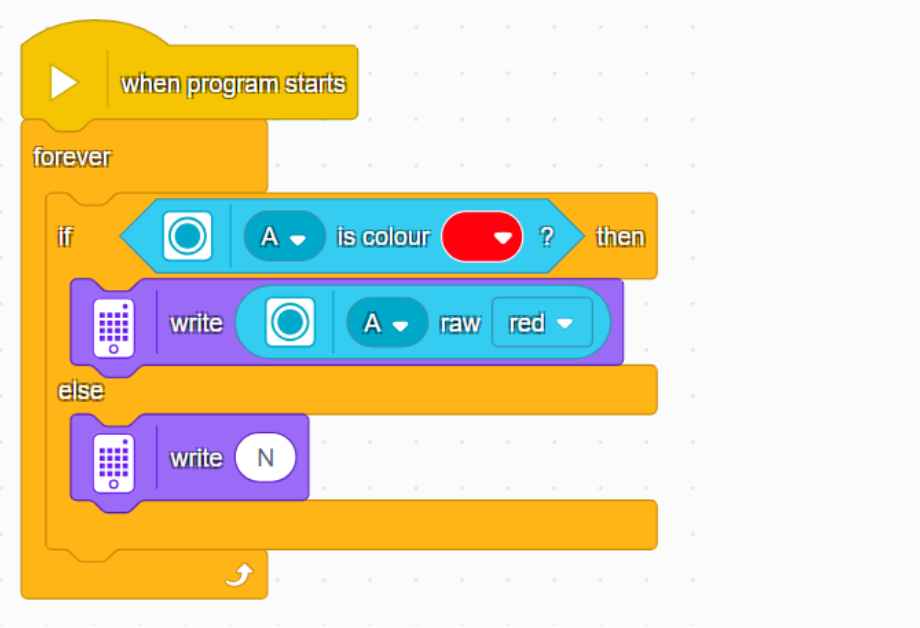
Switch the vision module to QR Code Recognition Mode.
If a QR code is detected, its X coordinate will be displayed on the SPIKE Prime hub; otherwise, N will be shown.
Face Attribute Recognition
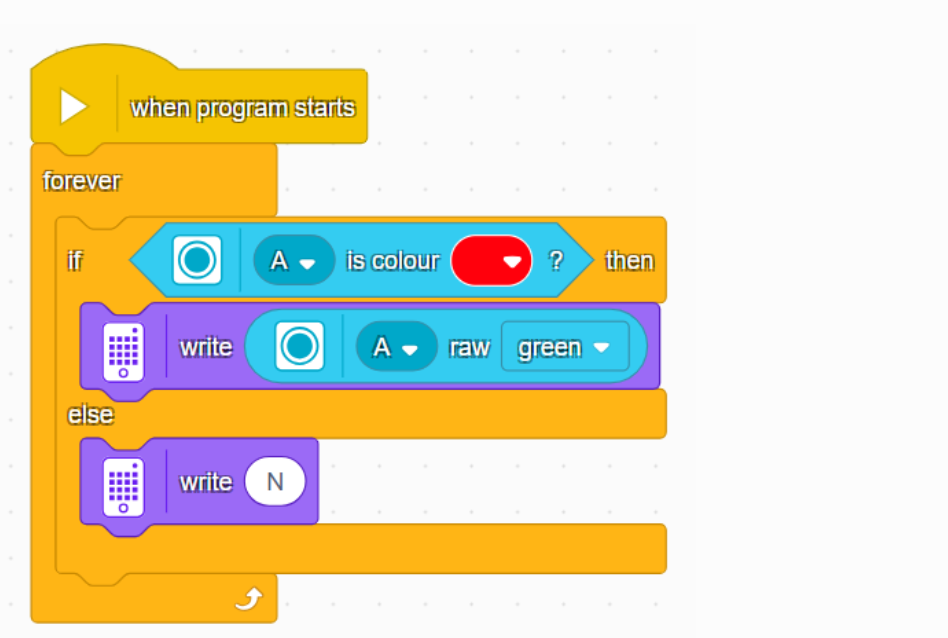
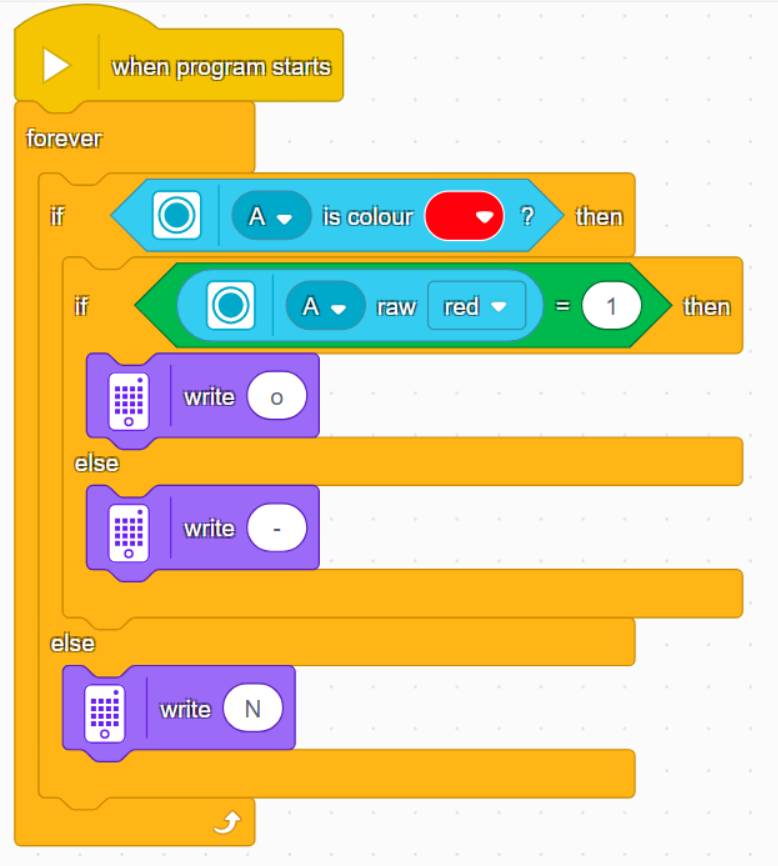
Switch the vision module to Face Attribute Recognition Mode.
If no face is detected, the SPIKE Prime hub will display N.
If a face is detected: Open mouth →
oClosed mouth →-
Face Recognition
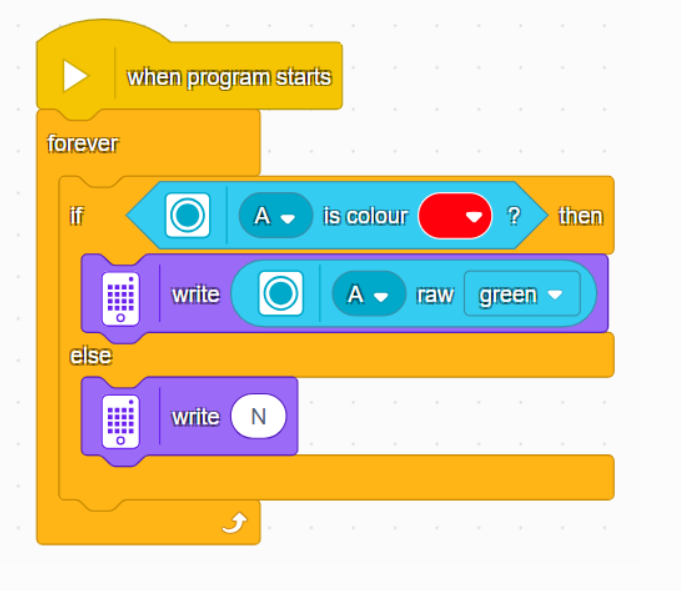
Switch the vision module to Face Recognition Mode.
Manually control the module to learn faces.
If no learned face is recognized, the SPIKE Prime hub will display N.
If a learned face is recognized, the hub will display the X-coordinate of the detected face.
Deep Learning
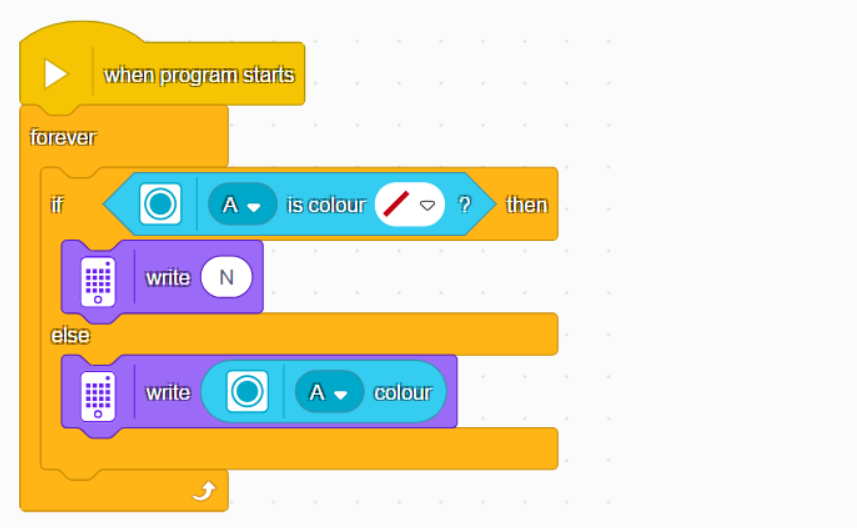
Switch the vision module to Deep Learning Mode.
Manually control the module to perform deep learning training.
If no object is recognized, the SPIKE Prime hub will display N.
If an object is recognized, the hub will display the corresponding ID.
Road Sign Recognition
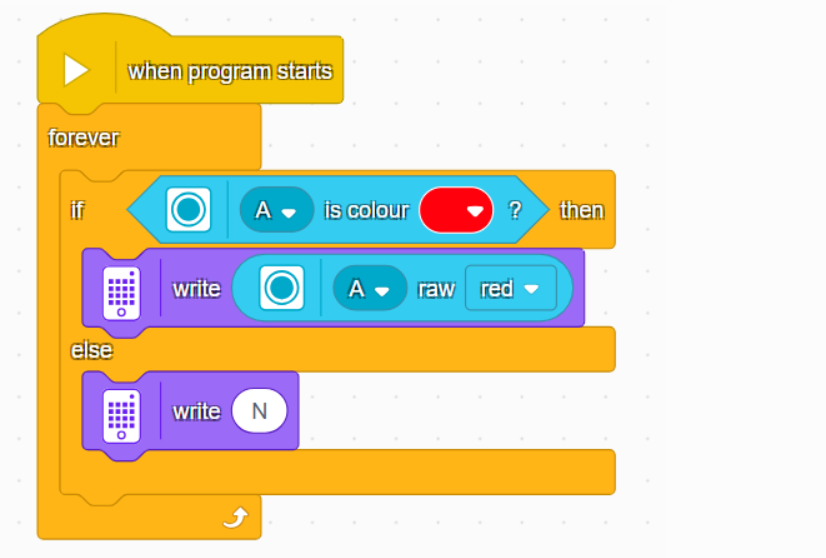
Switch the vision module to Road Sign Recognition Mode.
If no road sign is recognized, the SPIKE Prime hub will display N.
If a road sign is recognized, the hub will display the corresponding road sign ID.
AI Chat
Before using this function, you need to configure the network and register the identification code on Xiaozhi. For detailed instructions, please refer to the Conversation Mode document under Mode Selection.
Get Chat Status
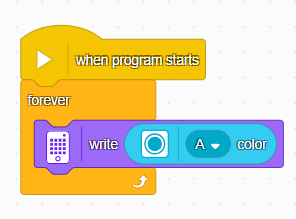
Display the AI chat status on the LED matrix. The possible values are:
0: AI not started
1: Connecting
2: Standby
3: Listening
4: Speaking
5: Network configuration in progress
Get Custom Command
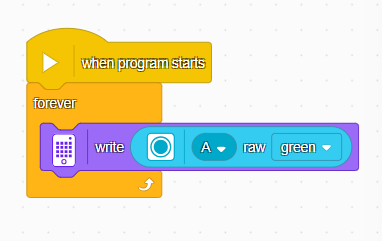
Display the custom command being executed on the LED matrix. For usage details, please refer to the description of custom commands in the Conversation Mode document under Mode Selection.
Get Motion Command

Control movement by voice, including forward, backward, turn left, and turn right, and display the corresponding command number on the LED matrix.
Motion command values:
1: Forward
2: Backward
3: Turn left
4: Turn right
5: Stop
Get Motion Speed
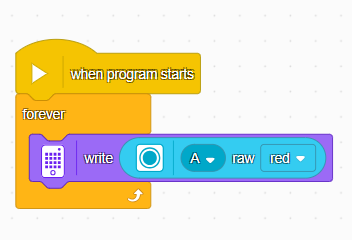
Control movement speed by voice and display the required speed on the LED matrix.
Motion speed range:
0 ~ 100
WIFI Stream
Before using this function, the device needs to be connected to Wi-Fi. For detailed instructions, please refer to the WiFi Video Streaming document under Mode Selection.
Get Web Button Values
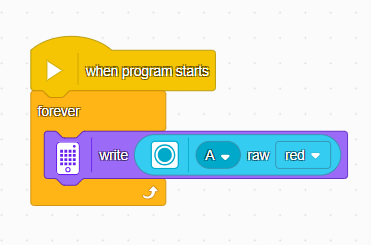
Get the values of the buttons pressed on the web page and display them on the LED matrix.
A byte is returned, and the bit positions corresponding to each button in the byte are: 0012 3456.
When a corresponding button is pressed, its bit is set to 1.
Get Keyboard Key Values
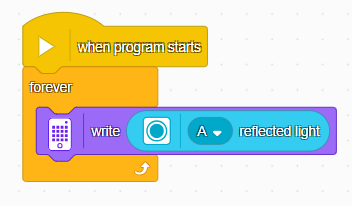
Get the values of the W, A, S, D keys pressed on the keyboard and display them on the LED matrix.
A byte is returned, and the bit positions corresponding to each key in the byte are: 0000 wasd.
When a corresponding key is pressed, its bit is set to 1.
Get Web Joystick Values
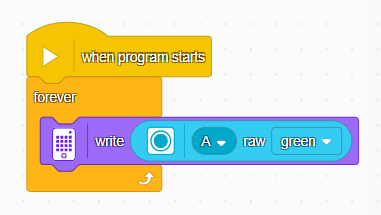
Get the value of the joystick in the X direction and display it on the LED matrix.
The range is 0 ~ 200. When the joystick is in the center position on the X axis, the value is 100.
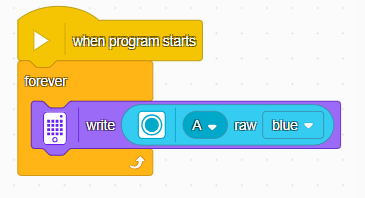
Get the value of the joystick in the Y direction and display it on the LED matrix.
The range is 0 ~ 200. When the joystick is in the center position on the Y axis, the value is 100.